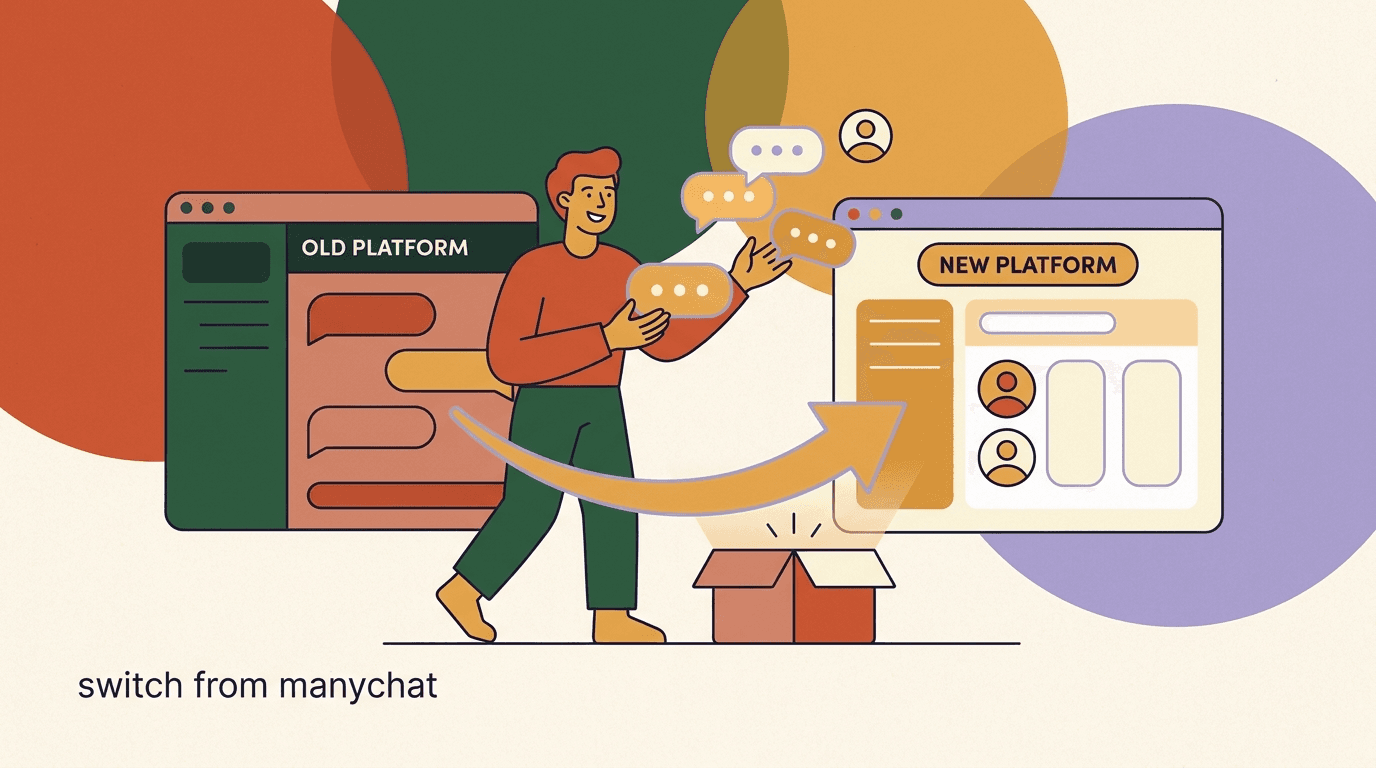
If you have decided to migrate from ManyChat, this guide removes the friction. You have likely already weighed the pricing, the AI Step add-on, and the contact-creep math, and you want the practical part: how do you actually move, what comes with you, what has to be rebuilt, and how do you switch without dropping a single conversation. That is exactly what this is — a step-by-step migration walkthrough, not another comparison piece.
Here is the honest summary up front. The core of your setup — your most important comment-to-DM funnel — can be live on KlyoChat in under ten minutes. We mean that literally: connect a channel, import your list, drop in a template, publish. But your full setup, the polished version with every flow rebuilt and your AI agent trained, is an afternoon's work. We will not pretend otherwise. The ten-minute number is the path to a working funnel; the afternoon number is the path to a finished migration.
Full disclosure: we build KlyoChat, so we have a stake in you switching. We have tried to keep this guide genuinely useful rather than a sales pitch — which means being upfront about the parts that take effort (your flows do not auto-import; you rebuild them) and the things KlyoChat does not do (no native SMS or email). If either of those is a dealbreaker, better to know it now than three steps in.
The whole process breaks into five jobs: connect your channels, import your contacts, rebuild your key flows, replace the AI Step with a real AI agent, and cut over. None of them is hard. Most of them are clicking through OAuth screens and dropping templates into a builder. Let's walk through each one.
One more thing before we start. You can do this entire migration during your free trial, before you pay anything. KlyoChat's trial is seven days with no credit card, so you are not committing money to find out whether the move works for you. Build the whole thing, run it against real traffic, and only then decide. That changes the psychology of migrating: you are not switching on faith, you are switching after you have already seen your funnels working on the new tool. Keep that in mind as you read — nothing below requires you to cancel ManyChat or spend a cent until you are genuinely satisfied.
What carries over when you migrate, and what gets rebuilt?
Before you touch anything, set your expectations correctly. This is the single most important section in the guide, because the teams who have a smooth migration are the ones who knew in advance what they were rebuilding versus what was coming along automatically.
There is no magic 'import from ManyChat' button — on KlyoChat or any competing platform. Flow logic is proprietary to each builder, so it does not transfer between tools. That sounds worse than it is. In practice, almost every account runs on two or three flows that do the real work, and rebuilding those from templates is faster than people expect. You are not recreating months of work; you are recreating your best three flows in a fresh builder.
It helps to separate two kinds of things you have in ManyChat: data and logic. Data is your people — the contacts, their tags, their custom fields. Data is portable. It exports to a file and imports into the new tool, and your segmentation survives the trip. Logic is your automation — the flows, the branching, the conditions, the AI steps. Logic is not portable in any tool, because there is no shared file format for it, but it is also the part that benefits most from a fresh build. Half the flows in a mature ManyChat account are experiments that never got deleted. Migration is a forced spring-clean: you keep the logic that earns its place and quietly leave the rest behind.
Here is the clean breakdown of what moves with you and what you set up new.
| Item | Carries over? | How |
|---|---|---|
| Contacts (people) | Yes | CSV export from ManyChat, CSV import into KlyoChat |
| Tags | Yes | Map your tag column during CSV import |
| Custom fields | Yes | Map each field column during CSV import |
| Channel connections | Re-done | Reconnect each channel via OAuth (a few clicks) |
| Flows / automations | Rebuilt | Recreate your top flows from KlyoChat templates |
| AI Step add-on | Replaced | Swap for a built-in KlyoChat AI agent with a knowledge base |
| WhatsApp number & templates | Stays with Meta | Lives on your Meta/WhatsApp Business account, not the tool |
Why flows cannot auto-import
Every chat platform stores its automation logic in its own internal format. There is no shared standard, so no tool — KlyoChat included — can read another tool's flows directly. This is true industry-wide. The upside: rebuilding only your top two or three flows, which is where almost all your results come from, takes far less time than the original build did.
How long does migrating from ManyChat actually take?
We promised honesty about the timeline, so here is the realistic version rather than the marketing version. Your mileage depends entirely on how many flows you run and how complex they are, but for a typical creator or small brand the shape is predictable.
Think of it in two milestones. The first is 'live' — your most important funnel running on KlyoChat. That is the under-ten-minutes claim, and it holds for the common case: one channel connected, a contact list imported, and a comment-to-DM template published. The second milestone is 'done' — every flow rebuilt, your AI agent trained on your knowledge base, all channels connected, and ManyChat cancelled. That is an afternoon.
The reason these two numbers are so different is worth understanding, because it tells you where to spend your effort. Connecting a channel and publishing a template flow is mechanical — a few clicks each, and the work scales with the number of channels and flows, not with their complexity. Training an AI agent and rebuilding nuanced flows is judgment work — it scales with how careful you want to be about wording, knowledge, and edge cases. The mechanical part is genuinely fast. The judgment part is where the afternoon goes. So if you are short on time, do the mechanical part now to get live, and schedule the judgment part for a focused block later. The table below splits the work along exactly that line.
| Task | Realistic time |
|---|---|
| Sign up and connect your first channel | 2–3 minutes |
| Import contacts from CSV | 2–4 minutes |
| Publish your first comment-to-DM flow from a template | 3–5 minutes |
| Rebuild remaining flows (2–3 of them) | 30–60 minutes |
| Connect remaining channels | 5–10 minutes |
| Set up and train your AI agent | 20–40 minutes |
| Run in parallel, verify, then cut over | 1–2 days (mostly waiting) |
Do the ten-minute version first
Get one funnel live before you do anything else. It proves the whole chain works — channel, contacts, flow, AI — on your real account, and it gives you something to test against while you rebuild the rest. Momentum beats planning here.
How do you connect your channels?
Channels are the first real step, and they are the easiest. KlyoChat connects to Facebook, Instagram, Telegram, WhatsApp, TikTok, and X, and each one connects through standard OAuth — the same 'log in and authorize' flow you have done a hundred times. You are granting KlyoChat permission to send and receive messages on your behalf; you are not handing over passwords or moving anything off your accounts.
Crucially, connecting a channel to KlyoChat does not disconnect it from ManyChat. The two can coexist on the same Instagram or Facebook account during the migration. This is what makes a zero-downtime cutover possible — you set everything up on KlyoChat while ManyChat is still running, and only switch the actual automation over at the end.
You do not need to connect all six channels at once, and you probably should not try. Connect the channel that carries the bulk of your conversations first, get a funnel live on it, and add the others as you rebuild the flows that use them. There is no penalty for adding channels later — KlyoChat's plans include all of them — so treat channel connection as something you do incrementally alongside the rest of the migration rather than a single big upfront chore. The order that works best for most people is: their busiest social channel first, WhatsApp early (because of the verification timing covered below), and the long-tail channels last.
- Create your KlyoChat accountSign up at app.klyochat.com/signup. It is a 7-day free trial with no credit card, so you can build out your entire migration before deciding to pay.
- Open the channels settingsFrom the dashboard, go to your channel connections. You will see every supported platform — Facebook, Instagram, Telegram, WhatsApp, TikTok, X — with a connect button for each.
- Connect your highest-priority channel firstClick connect on the channel that drives most of your DMs (for most creators, Instagram). You will be sent to that platform's OAuth screen, where you log in and authorize. Then you are back in KlyoChat.
- Authorize the requested permissionsApprove the messaging permissions when prompted. These let KlyoChat send and receive DMs and read comments for comment-to-DM funnels. This is the same permission model ManyChat uses.
- Repeat for your other channelsConnect the rest as you need them. You do not have to connect all six on day one — add channels as you rebuild the flows that use them.
OAuth means you never share passwords
Connecting via OAuth means KlyoChat receives a scoped, revocable authorization token from the platform — never your login credentials. You can revoke KlyoChat's access at any time from the platform's own settings, exactly as you can with ManyChat or any other connected app.
What about WhatsApp specifically?
WhatsApp deserves its own note because it works differently from the social channels, and the difference is the same on every platform — including ManyChat. Your WhatsApp Business number and your approved message templates do not live inside ManyChat or KlyoChat. They live on your Meta / WhatsApp Business account. The chat tool connects to that account; it does not own the number or the templates.
What this means for your migration: there is nothing to 'move.' Your number stays exactly where it is, on Meta. You point KlyoChat at the same Meta WhatsApp Business account, and your number and approved templates are available there. You are re-pointing the automation tool, not transferring a phone number.
If WhatsApp is your core channel, plan this step deliberately
Connecting a WhatsApp Business account involves Meta's verification flow, which can take longer than a one-click social OAuth. Start the WhatsApp connection early in your migration so any Meta-side approval has time to clear before your cutover day. Your number and templates remain on your Meta account throughout — nothing is at risk.
Where each piece of WhatsApp lives
- WhatsApp number
- Your Meta / WhatsApp Business account — unchanged
- Approved templates
- Your Meta account — unchanged
- Per-conversation fees
- Billed by Meta directly — applies on any tool
- Automation & inbox
- Moves from ManyChat to KlyoChat
How do you export your contacts from ManyChat?
Your contacts are the asset you do not want to lose, and the good news is they come with you cleanly. ManyChat lets you export your contacts to a CSV file, and KlyoChat imports CSV. Tags and custom fields are columns in that file, so they map straight across during import.
The export itself happens on the ManyChat side. The exact menu wording can shift as ManyChat updates its interface, but the path is consistently in your account settings under a contacts or data export option. If you cannot find it, ManyChat's own help docs have the current location.
A word on what a good export looks like. The file you want is a wide CSV: one row per contact, and a column for every attribute you care about — at minimum a name or social handle to identify the person, then a column for tags and a column for each custom field you have built. If your export only contains names and nothing else, you have lost the segmentation that makes your list useful, so check before you move on. It is worth opening the file and scanning the header row to confirm those columns are present. Two minutes here saves a re-import later.
- Open ManyChat settingsIn ManyChat, go to Settings and look for the contacts or data export section. This is where ManyChat lets you download your audience.
- Request a CSV export of your contactsChoose the CSV export option. Depending on list size, ManyChat may generate the file immediately or email you a download link when it is ready.
- Include tags and custom fields in the exportMake sure the export contains your tag and custom-field columns, not just names. These are what let you preserve your segmentation when you import.
- Download and open the CSV to check itOpen the file in a spreadsheet and glance at the columns. Confirm you can see identifiers (like a name or social handle), your tags, and your custom fields. Fix any obviously broken rows now, before importing.
Prune before you import
Migration is the perfect moment to clean your list. Delete rows for contacts that have had zero engagement in 6–12 months. A leaner list imports faster, keeps your inbox focused, and starts your KlyoChat account clean. You are not losing reach — you are dropping dead weight.
How do you import contacts into KlyoChat?
With your CSV in hand, the import side is quick. KlyoChat's importer walks you through matching your spreadsheet columns to KlyoChat fields — this is the step that carries your tags and custom fields over intact. You match 'tag' to tags, 'city' to a custom field, and so on.
One detail that matters for your budget: KlyoChat plans bundle a contact allowance, so importing your list does not change your price. The Pro plan includes 10,000 contacts. Importing 8,000 contacts on Pro costs exactly the same as importing 800. This is the opposite of contact-metered pricing, and it means you never have to think about your list size as a cost driver while you migrate.
- Open the contacts importer in KlyoChatFrom the contacts area of your dashboard, choose to import contacts and upload the CSV you exported from ManyChat.
- Map your columns to KlyoChat fieldsKlyoChat shows your CSV columns next to its fields. Match name, social handle, tags, and each custom field. This mapping step is what preserves your segmentation.
- Confirm tags and custom fieldsDouble-check that your tag column is mapped to tags (not a generic field) and that each custom field has a home. This is where carry-over either works or quietly breaks, so spend the extra thirty seconds here.
- Run the import and spot-checkStart the import, then open a handful of imported contacts and verify their tags and fields landed correctly. If something is off, you can re-import — the mapping is the only thing you usually need to fix.
Importing a big list does not raise your bill
Because KlyoChat bundles contacts into each plan — 10,000 on Pro — bringing your whole ManyChat audience over has no effect on what you pay. You will never get a 'tier jump' email for importing your own list. Verify the current contact allowances on the pricing page.
Example column mapping
- CSV column: first_name
- → KlyoChat: First name
- CSV column: ig_username
- → KlyoChat: Instagram handle
- CSV column: tags
- → KlyoChat: Tags (comma-separated)
- CSV column: customer_status
- → KlyoChat: Custom field (Customer status)
How do you rebuild your flows?
This is the part people worry about most and the part that is most reassuring once you start. You are not rebuilding everything. You are rebuilding the two or three flows that actually drive results, and you are starting from KlyoChat templates rather than a blank canvas.
For almost every account, the high-value flows are the same three: a comment-to-DM funnel that turns a viral post into conversations, a welcome flow that greets and qualifies new contacts, and an FAQ or qualification flow that answers the questions you get over and over. Rebuild those first. Anything beyond them is a nice-to-have you can recreate later, once you are live.
KlyoChat's builder is no-code and works on mobile, which is worth calling out: you can rebuild and edit flows from your phone, not just a desktop. If a post pops while you are out, you can wire up the comment-to-DM funnel from where you are. This matters more during a migration than it sounds, because rebuilding flows is the part most likely to get squeezed into the gaps of a busy week. Being able to do it in ten-minute bursts from your phone, rather than blocking out a desktop session, is often the difference between a migration that finishes and one that stalls at eighty percent.
When you rebuild, resist the temptation to improve everything at once. The goal of the migration is parity — getting KlyoChat to do what ManyChat was doing — not a redesign. Recreate each flow as close to its working version as you can, get it live, and only then iterate. Mixing 'rebuild' and 'redesign' is how a migration that should take an afternoon turns into a two-week project, because every flow becomes an opportunity to second-guess the copy and the branching. Rebuild first, improve later.
- Rebuild only your top 2–3 flows first; recreate the rest after you are live.
- Start from templates rather than a blank flow — it is much faster.
- Match tag names to what you imported so segmentation stays consistent.
- Test every flow on your own account before trusting it with real traffic.
- You can build and edit flows from your phone, not only a desktop.
- Start your comment-to-DM funnel from a templateOpen the flows section, pick the comment-to-DM template, and customize it: choose the trigger post or keyword, write the DM, and set any follow-up. This is the flow to do first because it is usually your biggest driver.
- Recreate your welcome flowBuild the message new contacts receive on first interaction. Add any tagging or qualification logic you had in ManyChat — apply tags so your segmentation stays consistent with your imported contacts.
- Rebuild your FAQ / qualification flowRecreate the flow that handles common questions and routes or qualifies people. Lean on a template and adapt the wording to match your brand voice.
- Reapply your tagging logicWherever a ManyChat flow applied a tag, make the KlyoChat flow apply the same tag. This keeps the segments you imported from your CSV aligned with how new contacts get tagged going forward.
- Test each flow with your own accountBefore relying on a flow, trigger it yourself — comment on the post, send the keyword, DM the account — and confirm the right message fires with the right tags. Fix anything, then move on.
Resist the urge to rebuild everything
The trap is trying to recreate every flow you ever made in ManyChat, including the ones that never fired. Rebuild the three that drive results, ship them, and let the dormant flows go. You can always add more once you are running — and you will probably find you do not miss most of them.
How do you replace the ManyChat AI Step with a real AI agent?
If you were paying for ManyChat's AI Step add-on, this is one of the more satisfying parts of the migration. On ManyChat, AI is a paid add-on — roughly an extra $29/month on top of your plan — that lets you drop AI blocks into flows. On KlyoChat, AI agents are included in your plan. There is no separate AI line item to switch on or pay for.
More than that, the model is different. Instead of bolting an AI block into individual flow steps, you create an AI agent and train it on a knowledge base — your FAQs, your policies, your product details. That agent then handles first response across every connected channel, drawing on what it knows about your business. It is a standing agent, not a per-step add-on.
The practical effect is that you stop thinking about AI as something you wire into each flow and start thinking about it as a teammate that already knows your business. On ManyChat, if you wanted AI in three flows, you placed three AI steps and configured each. On KlyoChat, you train one agent once, and it is available wherever you point it. When your policies change, you update the knowledge base in one place rather than hunting down every flow that referenced the old answer. For a migration, this is also less work to set up than it sounds: you are not recreating AI logic flow by flow, you are pouring your existing FAQ and policy documents into a knowledge base and letting the agent draw on them.
- Create an AI agent in KlyoChatGo to the AI agents section and create a new agent. Give it a name and a role — for example, 'first-response assistant for customer questions.'
- Build its knowledge baseFeed the agent the information it needs: FAQs, shipping and return policies, product details, pricing, your tone. This is what lets it answer accurately instead of guessing.
- Set its scope and handoff rulesDecide what the agent handles on its own and when it should hand a conversation to a human in the team inbox. A clear handoff rule keeps it helpful without overstepping.
- Connect the agent to your channels and flowsPoint the agent at the channels and flows where you want AI first response. Where ManyChat had an AI Step, the KlyoChat agent does that job — and across every channel at once.
- Test, then cancel the ManyChat AI StepSend the agent real questions and check its answers. Once it performs well, you can drop the ManyChat AI Step add-on — that is recurring cost you stop paying the moment you switch.
Dropping the AI Step is immediate savings
The AI Step is a recurring add-on on top of your ManyChat plan. Because KlyoChat includes AI agents, the moment you cut over you stop paying that separate add-on. For teams that came to chat marketing primarily for AI, this is often the clearest part of the financial case.
AI Step vs KlyoChat AI agent
- ManyChat AI Step
- Add-on (~+$29/mo), AI blocks bolted into individual flow steps
- KlyoChat AI agent
- Included in plan, a standing agent with a knowledge base across all channels
How do you cut over with zero downtime?
Here is the step that turns 'set up' into 'switched.' The whole reason you connected channels without disconnecting ManyChat, and rebuilt flows while ManyChat kept running, is so that the cutover is a controlled handoff rather than a risky leap. You run both tools in parallel briefly, then flip the automation to KlyoChat with no gap in coverage.
The principle is simple: never have two tools auto-responding to the same conversation at the same time. So you do not flip everything at once — you pause ManyChat's flows as you turn on the equivalent KlyoChat flows. For a day or two, KlyoChat handles new conversations while ManyChat stays connected as a safety net. Once you are confident, you cancel ManyChat.
Think of the parallel period as a supervised trial, not a leap of faith. ManyChat is still connected, its flows paused but ready to re-enable if something looks wrong. KlyoChat is handling live traffic, and you are watching the inbox. If a flow misfires or the AI agent answers something poorly, you fix it on KlyoChat — and in the worst case you re-enable the ManyChat flow for an hour while you sort it out. This safety net is the whole point of running both tools at once. It means the cutover is reversible right up until the moment you cancel ManyChat, which is exactly when you should feel confident enough that you no longer need it.
- Verify your KlyoChat setup is completeConfirm channels are connected, contacts are imported with tags intact, your top flows are rebuilt and tested, and your AI agent is trained. Do not start the cutover until this checklist passes.
- Pause the matching flow in ManyChatFor each flow you have rebuilt, pause or deactivate its ManyChat equivalent. This prevents both tools from replying to the same trigger. Do it flow by flow, not all at once.
- Activate the KlyoChat flowTurn on the rebuilt KlyoChat flow as you pause the ManyChat one. New conversations now route through KlyoChat. There is no gap because you are swapping one active flow for another.
- Run in parallel for a day or twoLeave ManyChat connected but with its flows paused. Watch your KlyoChat inbox handle real traffic. If anything looks wrong, you can adjust the KlyoChat flow or briefly re-enable the ManyChat one as a fallback.
- Cancel ManyChatOnce KlyoChat has handled real conversations cleanly for a couple of days — including the AI agent — cancel your ManyChat subscription and drop the AI Step add-on. That is the migration done.
Do not run both tools live on the same flow
The one mistake to avoid is leaving a ManyChat flow active while its KlyoChat replacement is also active on the same trigger. Contacts would get duplicate replies. Pause the ManyChat flow at the exact moment you activate the KlyoChat one, flow by flow, and the handoff stays clean.
What might trip you up, and how do you avoid it?
Most migrations are smooth, but a few things catch people out. None of them are serious if you know about them in advance, so here is the short list of things to watch.
- No native SMS or email: if your ManyChat strategy leans on SMS or email, KlyoChat does not offer those natively. Decide whether that is a dealbreaker before you switch — it is the most important honest limit to weigh.
- WhatsApp verification timing: the Meta-side WhatsApp connection can take longer than a social OAuth, so start it early rather than on cutover day.
- Tag mapping during import: if tags do not map correctly in the CSV step, your segmentation breaks. Spend the extra time confirming the mapping.
- Rebuilding too much: trying to recreate every old flow stalls migrations. Ship your top three, then add more later.
- Smaller community: KlyoChat is newer than ManyChat, so the third-party template marketplace and community are smaller. If you rely heavily on ManyChat's marketplace, factor that in.
The SMS / email limit is the real decision point
Everything else in this guide is logistics. The one strategic question is channels: KlyoChat covers Facebook, Instagram, Telegram, WhatsApp, TikTok, and X, but not native SMS or email. If social and chat are your world, you lose nothing. If SMS or email are core to your funnel, that is the thing to resolve before migrating.
What does it cost after you switch?
Since you are migrating, you have probably already looked at pricing, but it is worth restating what your bill looks like on the other side — because the structure is different from ManyChat's contact-metered model with add-ons.
KlyoChat uses flat plans with bundled contacts and included AI. Your bill does not move when your audience grows within your plan's allowance, and there is no separate AI charge. Here are the published plans; verify the current numbers on the pricing page before you budget.
- Contacts are bundled, so importing your ManyChat list does not change your price.
- AI agents are included — there is no separate AI Step add-on to pay for.
- Every plan starts with a 7-day free trial, no credit card, so you build your whole migration before paying.
- There is no free-forever plan; the trial is the way to test the full product.
| Plan | Monthly | Yearly | Highlights |
|---|---|---|---|
| Basic | $19/mo | $15/mo | Entry plan, core channels, 1 AI agent |
| Pro | $49/mo | $39/mo | All channels, 10,000 contacts, custom AI agents |
| Business | $129/mo | $109/mo | More seats, 50,000 contacts, API, integrations |
| Enterprise | Custom | Custom | SSO/SAML, data residency, SLA, dedicated success |
Use the trial to finish your migration first
The 7-day free trial with no card is built for exactly this. Connect channels, import contacts, rebuild flows, and train your AI agent during the trial. By the time you decide whether to pay, you already have a working setup — not a demo.
Do you have to do this alone?
No. If you would rather not click through the whole migration solo, we offer a free migration call. Someone from the KlyoChat team walks the setup with you — connecting channels, sorting the CSV import, and rebuilding your key flows — so you are not guessing on the parts that matter.
This is most useful if WhatsApp is central to your setup, if your contact list is large or messy, or if you have intricate flows you want to recreate faithfully. Book it from the contact page and bring your ManyChat account; we will get your core funnel live with you on the call.
A migration call is free, not a sales call
The point of the call is to get you migrated, not to pressure you. If KlyoChat is not the right fit — for example, if SMS or email turn out to be essential to you — we would rather tell you that than have you switch and regret it. Book it at /contact.
That is the whole migration: connect your channels via OAuth, export your ManyChat contacts to CSV and import them with tags intact, rebuild your top two or three flows from templates, replace the AI Step with an included AI agent, and cut over flow by flow while running both tools in parallel. The core comment-to-DM path is live in under ten minutes; the polished, finished version is an afternoon. There is no downtime because you switch the automation, not the accounts.
If you are ready, start the 7-day free trial with no card and get your first funnel live, or book the free migration call and do it with us. For more context, compare the platforms feature-for-feature in ManyChat vs KlyoChat, read why creators are leaving ManyChat, or run the numbers in our ManyChat pricing 2026 breakdown. Whichever way you go, migrate from ManyChat with your eyes open — that is the only kind of switch worth making.